100% offline Android billing app Made in Indore by Wheatron Technologies No monthly fee
Hisabnex HISABNEX by Wheatron Technologies

MadadHelp

Hisabnex kaise chalayeinHow to run Hisabnex

Har screen ek-ek karke, aur aapki dukaan ke hisaab se udaharan. Button ke naam wahi hain jo app me dikhte hain.Every screen, one at a time, with examples for your kind of shop. Button names are exactly as the app shows them.

Ek niyam:One rule: Item sirf ek baar banta hai. Maal har baar Receive Stock se aata hai. Bechte waqt maal usi lot se nikalta hai.An item is made once. Goods always come in through Receive Stock. A sale takes them out of a lot.

Aapki dukaan ke hisaab seFor your kind of shop

Apni dukaan chuno — item kaise banayein, maal kaise lein aur kaise bechein, usi ke udaharan se.Pick your shop — how to set up items, take goods in and sell, with its own examples.

Kirana / Grocery

App ye category tick karta hai:The app ticks these categories: Grocery / KiranaRice / Flour / PulsesOil / GheeSpices / MasalaSnacks / Biscuits / NamkeenCold drinks / BeveragesDairy / BakeryGeneral itemsOther

Item kaise banayeinSetting up the item

Khula maal (chawal, dal, cheeni) kilo me bikta hai: naap me sirf Weight (kg). Packet wala maal (biscuit, sabun) ginti me: Piece ya Pack. Tel litre me: Volume (litre).Loose goods (rice, dal, sugar) sell by the kilo: track only Weight (kg). Packed goods (biscuits, soap) are counted: Piece or Pack. Oil by the litre: Volume (litre).

Maal aayaWhen goods arrive

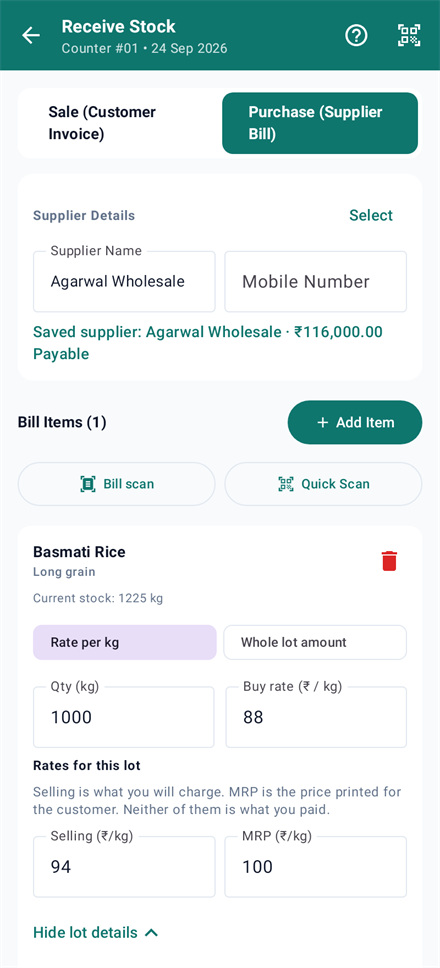
40 bori chawal, 25 kg ki: Qty me 1000 (kg), Buy rate ₹88. Supplier ne sirf total likha ho to Whole lot amount dabao aur ₹88,000 likho.40 bags of rice, 25 kg each: Qty 1000 (kg), Buy rate ₹88. If the supplier wrote only a total, tap Whole lot amount and type ₹88,000.

Bechte waqtWhen you sell

Grahak ne 5 kg liya: Qty 5, rate apne aap lot ka selling rate aata hai.A customer takes 5 kg: Qty 5, and the lot's selling rate fills itself in.

Kaam ki baatWorth knowing

Bori me aata hai aur kilo me bikta hai, aur bori bhi ginni hai? Naap me pehle Pack (bag), phir Weight (kg) par Can sell in this. Maal lete waqt ek bori ka wajan (25) likho.Bought by the bag, sold by the kilo, and you want to count bags too? Track Pack (bag) first, then Weight (kg) with Can sell in this on. Type one bag's weight (25) when the goods arrive.
Medical / Pharmacy

App ye category tick karta hai:The app ticks these categories: Medicine / PharmacyCosmetics / Personal careGeneral itemsOther

Item kaise banayeinSetting up the item

Dawai strip me bikti hai: naap Piece, unit strip. Syrup: Piece, unit bottle.Medicine sells by the strip: track Piece with the unit strip. Syrup: Piece with bottle.

Maal aayaWhen goods arrive

10 dabbe, har dabbe me 10 strip: Qty 100 strip. More details: lot no., size kholo aur supplier ke bill wala batch number Lot / Batch No. me likho — expiry ke waqt yahi kaam aata hai.10 boxes of 10 strips: Qty 100 strips. Open More details: lot no., size and type the batch number from the supplier's bill in Lot / Batch No. — it is what you need when a batch expires.

Bechte waqtWhen you sell

2 strip becho, lot chuno — us batch ka MRP aata hai.Sell 2 strips and pick the lot — that batch's MRP comes up.

Kaam ki baatWorth knowing

Expiry likhne ke liye: Stock → dawai → lot → Edit → Expiry (if any).To note an expiry: Stock → the medicine → its lot → Edit → Expiry (if any).

Clothing / Garment

App ye category tick karta hai:The app ticks these categories: Clothing / GarmentFootwearGeneral itemsOther

Item kaise banayeinSetting up the item

Shirt, kurta: Piece. Thaan ka kapda metre me bikta hai: pehle Roll, phir Length (metre ya gaj) par Can sell in this.Shirts and kurtas: Piece. Cloth sold off the roll: track Roll first, then Length (metre or gaj) with Can sell in this on.

Maal aayaWhen goods arrive

50 shirt aayi, bill par ₹15,000 total: Qty 50, Whole lot amount ₹15,000 — app ₹300 per piece nikal leta hai. Size alag-alag ho to har size ek alag line (M, L, XL) aur Size (printed on the bill) me size likho.50 shirts, one total of ₹15,000 on the bill: Qty 50, Whole lot amount ₹15,000 — the app works out ₹300 a piece. For different sizes, add one line per size (M, L, XL) and write it in Size (printed on the bill).

Bechte waqtWhen you sell

Thaan se 2.5 metre kaata: Sell by me metre chuno, Qty 2.5 — rate metre ka ho jata hai.2.5 metres cut from a roll: pick metre under Sell by, Qty 2.5 — the rate becomes a per-metre rate.

Kaam ki baatWorth knowing

Har size ka rate alag hai to size ko alag item bana lo ("Shirt - M", "Shirt - L").If each size has its own rate, make each size its own item ("Shirt - M", "Shirt - L").

Footwear

App ye category tick karta hai:The app ticks these categories: FootwearGeneral itemsOther

Item kaise banayeinSetting up the item

Joote jodi me: Piece, unit pair.Shoes by the pair: Piece with the unit pair.

Maal aayaWhen goods arrive

Har size ek line: Qty 6 pair, Size (printed on the bill) me "Size 8".One line per size: Qty 6 pairs, "Size 8" in Size (printed on the bill).

Bechte waqtWhen you sell

Grahak ka size wala lot chuno — wahi stock ghatta hai.Pick the lot in the customer's size — that is the stock that comes down.

Kaam ki baatWorth knowing

Stock screen par item kholo, har size ka lot alag dikhta hai — kaunsa size khatam hua, turant pata chalta hai.Open the item on the stock screen and each size's lot shows apart — you see at once which size ran out.

Electrical

App ye category tick karta hai:The app ticks these categories: Electrical goodsHardware fittingsHand toolsGeneral itemsOther

Item kaise banayeinSetting up the item

Bulb, switch: Piece. Taar ka coil metre me bhi bikta hai: pehle Roll (coil), phir Length (metre) par Can sell in this.Bulbs, switches: Piece. Wire sold by the metre off a coil: track Roll (coil) first, then Length (metre) with Can sell in this on.

Maal aayaWhen goods arrive

5 coil aaye, har coil 90 metre: Qty 5, lot details me ek coil ki length 90 (ya Whole lot me 450).5 coils of 90 metres: Qty 5, and in the lot details one coil's length 90 (or 450 under Whole lot).

Bechte waqtWhen you sell

15 metre becha: Sell by metre, Qty 15.15 metres sold: Sell by metre, Qty 15.

Kaam ki baatWorth knowing

Metre bechne par coil ki ginti bhi ghatani hai ya nahi — item me Ask me on the bill chuno, bill par har baar poochega.Should selling metres also take coils off the count? Choose Ask me on the bill on the item and the bill asks each time.

Mobile / Electronics

App ye category tick karta hai:The app ticks these categories: Electronics / Mobile accessoriesGeneral itemsOther

Item kaise banayeinSetting up the item

Charger, cover, earphone: Piece.Chargers, covers, earphones: Piece.

Maal aayaWhen goods arrive

Mobile phone: har phone ek alag line, aur Lot / Batch No. me uska IMEI. Ek hi model ke 5 phone = 5 line.Phones: one line per phone, with its IMEI in Lot / Batch No.. Five of one model = five lines.

Bechte waqtWhen you sell

Bechte waqt wahi IMEI wala lot chuno — bill par IMEI chhapta hai aur pata rehta hai kaunsa phone kise bika.Pick the lot with that IMEI when selling — the IMEI prints on the bill and you know which phone went to whom.

Kaam ki baatWorth knowing

Accessories ek line me poore aa sakte hain (Qty 20). IMEI sirf phone ke liye.Accessories can come in on one line (Qty 20). The IMEI trick is only for phones.

Stationery / Books

App ye category tick karta hai:The app ticks these categories: Stationery / BooksToys / Gift itemsGeneral itemsOther

Item kaise banayeinSetting up the item

Copy, pen: Piece. Darjan me kharidte ho to bhi stock piece me rakho.Notebooks, pens: Piece. Even when bought by the dozen, keep stock in pieces.

Maal aayaWhen goods arrive

5 darjan pen: Qty 60 pcs. Bill par sirf total ho to Whole lot amount.5 dozen pens: Qty 60 pieces. If the bill has only a total, use Whole lot amount.

Bechte waqtWhen you sell

Ek pen ya poora dabba — Qty me piece likho.One pen or a whole box — type the pieces in Qty.

Kaam ki baatWorth knowing

Kitaab ka ISBN barcode ho to Barcode / SKU me daal do, fir Quick Scan se bill jaldi banta hai.Put a book's ISBN barcode in Barcode / SKU and Quick Scan makes the bill faster.

Hardware / Iron & Steel

App ye category tick karta hai:The app ticks these categories: Steel Sheet / PlateTMT / SariyaAngle / Channel / BeamFlat / Patti / Round / SquarePipe / TubeFasteners (nut, bolt, screw)Welding materialHardware fittingsHand toolsCement / ConstructionPaint / ChemicalOther

Item kaise banayeinSetting up the item

Plate: pehle Piece, phir Weight (kg) par Can sell in this, aur chaho to Length, Width, Thickness. Sariya: Weight (kg ya MT). Pipe: Piece + Length + Weight.Plate: Piece first, then Weight (kg) with Can sell in this on, and if you like Length, Width, Thickness. TMT bars: Weight (kg or MT). Pipe: Piece + Length + Weight.

Maal aayaWhen goods arrive

Truck aaya, 20 plate, kaanta 2820 kg: Qty 20, wajan par Whole lot dabao aur 2820 likho — app 141 kg per plate nikalta hai.A truck brings 20 plates and the weighbridge says 2820 kg: Qty 20, tap Whole lot on the weight and type 2820 — the app works out 141 kg a plate.

Bechte waqtWhen you sell

Kilo me becha: Sell by kg — qty aur rate dono kilo me badal jaate hain. Plate kaat ke di to Cut size (optional) likho.Sold by weight: Sell by kg — both the quantity and the rate switch to kilos. Cut to size? Write it in Cut size (optional).

Kaam ki baatWorth knowing

Mill cert chahiye to lot ke Edit me Heat / Mill Cert No. milta hai — sirf lohe ke item par.The lot's Edit screen has Heat / Mill Cert No. for iron and steel items.

Auto parts

App ye category tick karta hai:The app ticks these categories: Auto parts / SparesHardware fittingsHand toolsGeneral itemsOther

Item kaise banayeinSetting up the item

Parts: Piece (ya set, pair). Engine oil: Volume (litre).Parts: Piece (or set, pair). Engine oil: Volume (litre).

Maal aayaWhen goods arrive

Part number Barcode / SKU me rakho. 20 litre oil: Qty 20.Keep the part number in Barcode / SKU. 20 litres of oil: Qty 20.

Bechte waqtWhen you sell

Part number se dhoondho ya Quick Scan karo.Find it by part number or with Quick Scan.

Kaam ki baatWorth knowing

Ek hi part alag gaadiyon ka ho to naam me gaadi likho ("Brake Pad - Splendor").When one part fits different vehicles, put the vehicle in the name ("Brake Pad - Splendor").

Dairy / Bakery

App ye category tick karta hai:The app ticks these categories: Dairy / BakerySnacks / Biscuits / NamkeenCold drinks / BeveragesGeneral itemsOther

Item kaise banayeinSetting up the item

Doodh litre me: Volume. Paneer kilo me: Weight. Bread, cake: Piece.Milk by the litre: Volume. Paneer by the kilo: Weight. Bread and cakes: Piece.

Maal aayaWhen goods arrive

Roz subah ka maal ek bill me: har cheez ek line.The morning's delivery on one bill: one line per product.

Bechte waqtWhen you sell

250 gram paneer: Qty 0.25 kg.250 grams of paneer: Qty 0.25 kg.

Kaam ki baatWorth knowing

Jaldi kharab hone wala maal: lot ke Edit me expiry likho. Kharab ho jaye to item ke menu se Remove Stock (Damaged / Not in Use) — nuksaan report me dikhta hai.Goods that spoil fast: note the expiry in the lot's Edit. When something goes bad, use Remove Stock (Damaged / Not in Use) from the item's menu — the loss shows in the report.

Cosmetics / Beauty

App ye category tick karta hai:The app ticks these categories: Cosmetics / Personal careGeneral itemsOther

Item kaise banayeinSetting up the item

Cream, shampoo, lipstick: Piece. Size naam me likho ("Face Cream 50 g").Creams, shampoos, lipsticks: Piece. Put the size in the name ("Face Cream 50 g").

Maal aayaWhen goods arrive

24 piece: Qty 24, MRP zaroor bharo — dukaan par MRP hi likha hota hai.24 pieces: Qty 24, and always fill in MRP — it is what is printed on the pack.

Bechte waqtWhen you sell

Bill par Retail (MRP) chuno to MRP wala rate lagta hai.Choose Retail (MRP) on the bill and the MRP is charged.

Kaam ki baatWorth knowing

Salon ya parlour ko thok me dete ho to Wholesale chuno — lot ka selling rate lagta hai.Selling in bulk to a salon? Choose Wholesale — the lot's selling rate is charged.

Agriculture / Seeds

App ye category tick karta hai:The app ticks these categories: Agriculture / Seeds / FertiliserPet / Animal feedGeneral itemsOther

Item kaise banayeinSetting up the item

Khaad, beej ki bori: Piece, unit bag. Khula beej kilo me: Weight. Dawai: litre ya bottle.Fertiliser and seed bags: Piece with the unit bag. Loose seed by the kilo: Weight. Sprays: litre or bottle.

Maal aayaWhen goods arrive

Quintal me aaya: unit quintal bhi hai (1 quintal = 100 kg).Bought by the quintal: the unit quintal is there too (1 quintal = 100 kg).

Bechte waqtWhen you sell

Kisaan ka udhaar: grahak ka naam likho, Amount Received from Customer me jitna mila — baaki khate me.Credit to a farmer: type the customer's name and in Amount Received from Customer what was paid — the rest goes to the khata.

Kaam ki baatWorth knowing

Fasal ke baad vasooli: Parties → grahak → Send Reminder WhatsApp par.Collecting after harvest: Parties → the customer → Send Reminder on WhatsApp.

Furniture / Kitchenware

App ye category tick karta hai:The app ticks these categories: FurnitureKitchenware / UtensilsGeneral itemsOther

Item kaise banayeinSetting up the item

Furniture: Piece ya set. Steel ke bartan kilo me bikte hain to Weight. Plywood: Area (sq ft).Furniture: Piece or set. Steel utensils sold by weight: Weight. Plywood: Area (sq ft).

Maal aayaWhen goods arrive

Dinner set: Qty 1 set. Bartan kilo me aaye: Qty kg me.A dinner set: Qty 1 set. Utensils bought by weight: Qty in kg.

Bechte waqtWhen you sell

Order par banne wala saaman: bill me Note / Bill Reference (Optional) me detail likho.Made-to-order pieces: write the details in Note / Bill Reference (Optional) on the bill.

Kaam ki baatWorth knowing

Advance liya to bill par jitna mila utna hi likho — baaki khate me dikhega.Took an advance? Enter only what was paid on the bill — the rest shows in the khata.

Sports / Toys

App ye category tick karta hai:The app ticks these categories: Sports goodsToys / Gift itemsGeneral itemsOther

Item kaise banayeinSetting up the item

Ball, bat, khilona: Piece ya set.Balls, bats, toys: Piece or set.

Maal aayaWhen goods arrive

Darjan me aaye: Qty piece me (12).Bought by the dozen: Qty in pieces (12).

Bechte waqtWhen you sell

Tyohar par discount: line par Disc: ya poore bill par Bill Discount:.Festival discount: Disc: on a line, or Bill Discount: on the whole bill.

Kaam ki baatWorth knowing

Kaunsa khilona bikta hi nahi — P&L Reports me item-wise munafa dekho.Which toy never sells? Look at item-wise profit in P&L Reports.

General store

App ye category tick karta hai:The app ticks these categories: General itemsGrocery / KiranaStationery / BooksCosmetics / Personal careOther

Item kaise banayeinSetting up the item

Har cheez ka apna naap: khula maal kilo, packet piece. Jo category list me nahi, item form me + New category se bana lo.Each thing in its own measure: loose goods by the kilo, packets by the piece. A category that is missing? Make it with + New category in the item form.

Maal aayaWhen goods arrive

Ek supplier ke bill me jitni cheezein, utni line.As many lines as there are products on the supplier's bill.

Bechte waqtWhen you sell

Barcode wala maal Quick Scan se — ek hi cheez do baar scan karo to qty 2 ho jaati hai.Barcoded goods with Quick Scan — scan the same thing twice and the quantity becomes 2.

Kaam ki baatWorth knowing

Doosri trade bhi shuru ki? Settings → Change categories and units → Tick by shop type.Started another trade too? Settings → Change categories and units → Tick by shop type.

Pehla dinYour first day

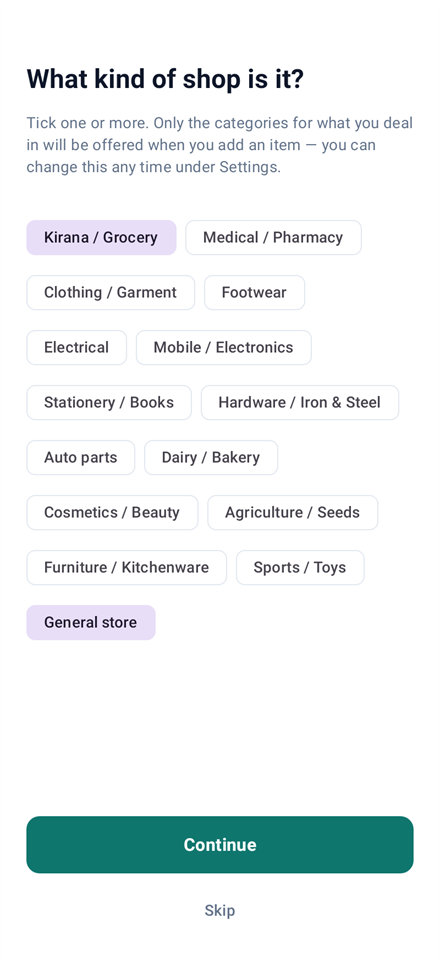
App pehli baar khulte hi teen sawaal poochta hai. Teeno Skip kar sakte ho.The first time it opens, the app asks three things. Every one can be Skipped.

  1. App kya karta hai, 5 line me — padho ya Skip.What the app does, in five lines — read it or Skip.
  2. What kind of shop is it? — apni dukaan ka type chuno (ek se zyada bhi). Item banate waqt sirf usi ki category aayengi.What kind of shop is it? — pick your trade (more than one is fine). Only its categories are offered when you make an item.
  3. Dukaan ka naam aur apna naam — ye bill par chhapta hai.Your shop's name and yours — they print on every bill.
  4. Start dabao. App me ek demo item aapki dukaan ke hisaab se hoga, ek purchase aur ek sale ke saath — dekh lo sab kaise judta hai.Tap Start. The app holds one example item from your trade, with a purchase and a sale — look at how it all connects.
  5. Samajh aa gaya to Settings → Remove example data — sab ek tap me saaf.Once it makes sense: Settings → Remove example data — gone in one tap.
Dhyaan raheWatch out
  • Dukaan ka type baad me badalna ho: Settings → Change categories and units → Tick by shop type.To change your trade later: Settings → Change categories and units → Tick by shop type.
Your first day in Hisabnex

Naya item bananaMaking an item

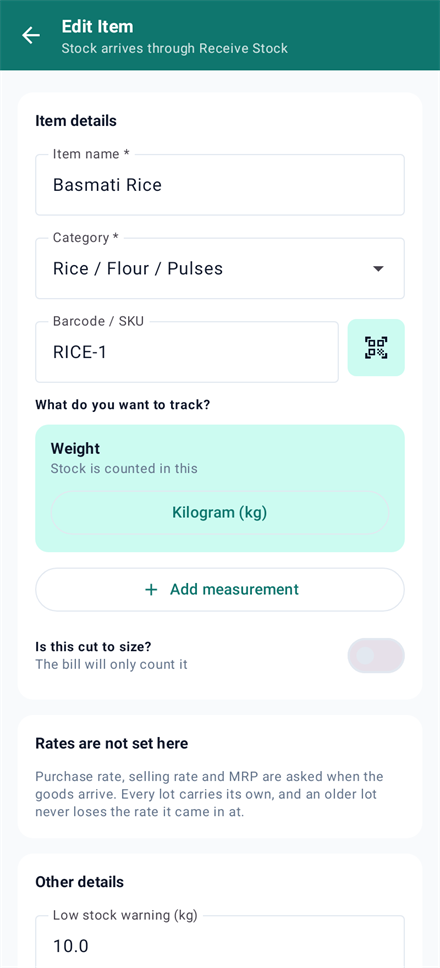
Item sirf naam hai — "Basmati Rice". Usme stock ya rate nahi hota. Item ek hi baar banta hai; maal jitni baar bhi aaye.An item is only a name — "Basmati Rice". It holds no stock and no rate. An item is made once, however often the goods arrive.

  1. Stock → neeche ka +, ya bill par Add Item → New Item.Stock → the + button, or on a bill Add Item → New Item.
  2. Item name * aur Category *. Category list me nahi? Neeche + New category.Item name * and Category *. Category not there? + New category at the bottom of the list.
  3. What do you want to track? — sabse upar wala naap wahi jisme stock ginte ho. Aur naap chahiye to Add measurement, aur jisme bechna ho us par Can sell in this.What do you want to track? — the top one is what stock is counted in. Need more? Add measurement, and turn on Can sell in this for whatever you sell in.
  4. Save Item. Stock abhi 0 hai — ye sahi hai. Maal Receive Stock se aayega.Save Item. Stock is 0 now — that is right. Goods come in through Receive Stock.
Save karne par kya hota haiWhat happens when you save

Wahi naam pehle se hai to app poochta hai: Already in your items. Wahi maal hai to Use … dabao — stock ek jagah rahega.If the name is already saved, the app asks: Already in your items. Same goods? Tap Use … so the stock stays in one place.

Dhyaan raheWatch out
  • Maal dobara aaya to item dobara mat banao — do item ban gaye to stock aadha-aadha bat jata hai.Goods arriving again? Do not make the item again — two items split the stock in half.
  • Rate item me nahi poochta. Kharid, selling aur MRP maal aane par lot me bharte ho.The item form asks no rate. Buying, selling and MRP rates go on the lot when the goods arrive.
Making an item in Hisabnex

Maal aaya: Receive StockGoods arrive: Receive Stock

Supplier ka har bill yahin chadhta hai. Isi se stock badhta hai, lot banta hai aur supplier ka udhaar judta hai.Every supplier bill goes in here. This is what adds stock, makes the lot and records what you owe the supplier.

  1. Home par + Add New Entry (Sale / Purchase) → upar Purchase (Supplier Bill). Upar Receive Stock likha aayega.On Home tap + Add New Entry (Sale / Purchase) → Purchase (Supplier Bill) at the top. The title turns to Receive Stock.
  2. Supplier ka naam aur mobile likho, ya Select se purana supplier chuno.Type the supplier's name and mobile, or Select one you have used before.
  3. Add Item → list se item chuno. Bilkul naya maal ho tabhi New Item.Add Item → pick the item from the list. New Item only for goods you never had.
  4. Line par pehle Qty aur Buy rate. Bill par sirf total ho to Whole lot amount aur total likho.On the line, first Qty and Buy rate. Only a total on the bill? Whole lot amount and type the total.
  5. Selling aur MRP — is lot ke rate. (MRP kharid ka daam nahi, grahak ke liye chhapa daam hai.)Selling and MRP — this lot's rates. (MRP is not what you paid; it is the price printed for the customer.)
  6. Lot number ya size chahiye to More details: lot no., size. Khali chhodo to app khud number deta hai.Need a lot number or size? More details: lot no., size. Leave it and the app numbers the lot.
  7. Ek bill par ek hi maal ke do rate? Add Item se wahi item phir chuno — nayi line, naya lot.One product at two rates on the same bill? Pick it again with Add Item — a new line, a new lot.
  8. Amount Paid to Supplier me jitna diya, phir Receive Stock (ya Receive & Print Receipt).What you paid goes in Amount Paid to Supplier, then Receive Stock (or Receive & Print Receipt).
Save karne par kya hota haiWhat happens when you save

Stock badhta hai, har line ka apna lot banta hai, supplier ke khate me baaki udhaar judta hai, aur stock screen par naye lot ka rate aa jata hai.Stock goes up, each line becomes its own lot, what is left unpaid goes to the supplier's khata, and the stock screen shows the newest lot's rates.

Dhyaan raheWatch out
  • Qty me pehle se 1 (kilo wale item me 10) bhara hota hai — hamesha badlo.Qty starts at 1 (10 for an item sold by weight) — always change it.
  • Truck ka ek hi wajan aaya? Wajan ke upar Whole lot — app ek piece ka wajan khud nikalta hai.Only the truck's weight? Tap Whole lot on the weight — the app works out one piece.
  • Galat bill save ho gaya to History me us bill par tap → Delete. Stock aur khata wapas ho jaate hain.Saved a wrong bill? Tap it in History → Delete. Stock and khata go back as they were.
Goods arrive: Receive Stock in Hisabnex

Bechna: Sale billSelling: the sale bill

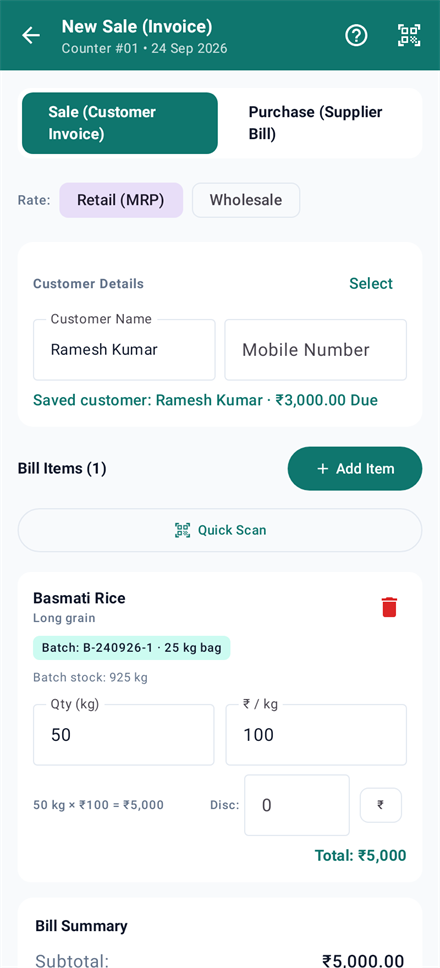
Grahak ka bill. Jitna paisa mila utna likho — baaki apne aap uske khate me chala jata hai.The customer's bill. Enter what was paid — the rest goes to their khata on its own.

  1. Home → + Add New Entry (Sale / Purchase). Sale (Customer Invoice) pehle se chuna hota hai.Home → + Add New Entry (Sale / Purchase). Sale (Customer Invoice) is already chosen.
  2. Rate: Retail (MRP) ya Wholesale — poore bill ka rate badal jata hai.Rate: Retail (MRP) or Wholesale — the whole bill switches.
  3. Grahak ka naam aur mobile, ya Select. Khali chhodo to counter ka grahak.The customer's name and mobile, or Select. Leave it blank for a counter customer.
  4. Add Item ya Quick Scan. Item ke kai lot hon to lot chuno — usi ka rate aata hai.Add Item or Quick Scan. If the item has several lots, pick one — its rate comes with it.
  5. Qty bharo. Item do tarah bikta ho (piece ya kilo) to Sell by se chuno — qty aur rate saath me badalte hain, total wahi rehta hai.Fill in Qty. Sold two ways (piece or kilo)? Choose under Sell by — quantity and rate change together and the total stays.
  6. Chhoot: line par Disc:, poore bill par Bill Discount:.Discounts: Disc: on a line, Bill Discount: on the bill.
  7. Cash / UPI / QR / Bank chuno, Amount Received from Customer me jitna mila.Choose Cash / UPI / QR / Bank and type what was paid in Amount Received from Customer.
  8. Save & Print Bill — PDF ya thermal parchi, WhatsApp par bhi. Sirf save: Save Entry Only.Save & Print Bill — a PDF or a thermal receipt, and on WhatsApp. Just saving: Save Entry Only.
Save karne par kya hota haiWhat happens when you save

Stock us lot se ghatta hai, munafa kharid rate se ginta hai, aur baaki paisa grahak ke khate me "Due" dikhta hai.Stock comes out of that lot, profit is worked out from the buying rate, and what is unpaid shows as "Due" in the customer's khata.

Dhyaan raheWatch out
  • Stock se zyada becha to app poochta hai — Save Anyway karoge to stock minus me chala jayega.Selling more than you hold? The app asks — Save Anyway takes the stock below zero.
  • Kuch item bill par poochte hain How should stock come down? — jawab diye bina bill save nahi hota.Some items ask How should stock come down? on the bill — it will not save until you answer.
  • Sale se Purchase par gaye to poora bill saaf ho jata hai — pehle save karo.Switching from Sale to Purchase clears the bill — save it first.
Selling: the sale bill in Hisabnex

Stock aur lotStock and lots

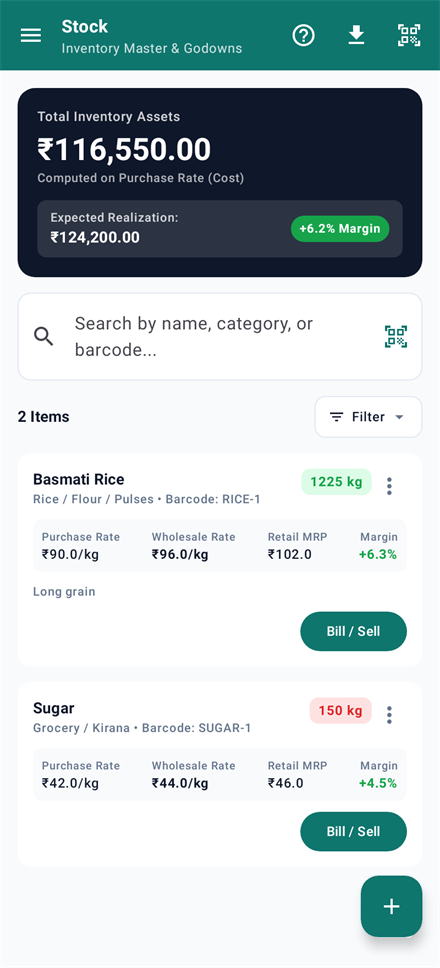
Har item ka bacha maal, naye lot ke rate, aur item par tap karke uske saare lot.Every item with what is left, the newest lot's rates, and all its lots when you tap it.

  1. Item par tap — neeche uske lot khulte hain, har lot ka apna stock aur rate.Tap an item — its lots open below, each with its own stock and rate.
  2. Item ka ⋮ menu: Edit, Stock Ledger, Return to Supplier, Remove Stock (Damaged / Not in Use), Delete.The item's ⋮ menu: Edit, Stock Ledger, Return to Supplier, Remove Stock (Damaged / Not in Use), Delete.
  3. Supplier ko maal wapas: Return to Supplier — stock ghatta hai aur supplier ka udhaar kam hota hai.Goods back to the supplier: Return to Supplier — stock goes down and so does what you owe.
  4. Toota ya kharab maal: Remove Stock (Damaged / Not in Use) — nuksaan report me dikhta hai.Broken or spoilt: Remove Stock (Damaged / Not in Use) — the loss shows in the report.
  5. Upar ⬇ se poori stock list Excel (CSV) me Downloads me.The ⬇ at the top saves the whole stock list to Downloads as an Excel (CSV) file.
Dhyaan raheWatch out
  • Laal badge = stock kam hai (item me likhi seema se neeche).A red badge means stock is low (below the level set on the item).
Stock and lots in Hisabnex

Lot badalnaEditing a lot

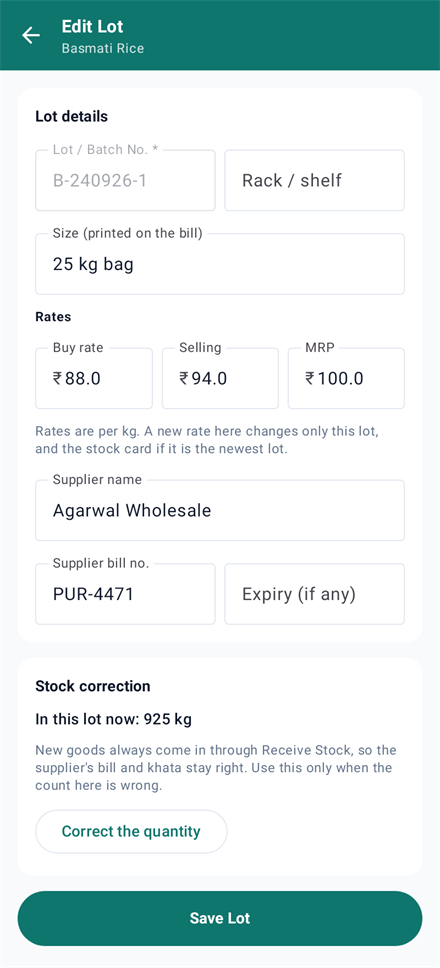
Lot ka rate, MRP, size, supplier ya expiry galat likha gaya? Yahan theek karo.A lot's rate, MRP, size, supplier or expiry went in wrong? Fix it here.

  1. Stock → item par tap → lot ke ⋮ → Edit.Stock → tap the item → the lot's ⋮ → Edit.
  2. Buy rate, Selling, MRP, size, supplier, Expiry (if any) — jo badalna ho.Buy rate, Selling, MRP, size, supplier, Expiry (if any) — whatever needs changing.
  3. Ginti galat hai? Correct the quantity → sahi qty aur wajah ("dobara gina") → Save Lot.Count wrong? Correct the quantity → the right quantity and a reason ("counted again") → Save Lot.
Save karne par kya hota haiWhat happens when you save

Rate sirf isi lot ka badalta hai (aur stock card ka, agar ye sabse naya lot hai). Ginti badli to Stock Ledger me wajah ke saath likha jata hai.The rate changes for this lot only (and on the stock card if it is the newest lot). A changed count is written in the Stock Ledger with its reason.

Dhyaan raheWatch out
  • Naya maal yahan se mat chadhao. Isse supplier ka bill aur udhaar nahi banta — naya maal hamesha Receive Stock se.Do not add new goods here. No supplier bill or khata is written — new goods always go through Receive Stock.
Editing a lot in Hisabnex

Stock LedgerStock Ledger

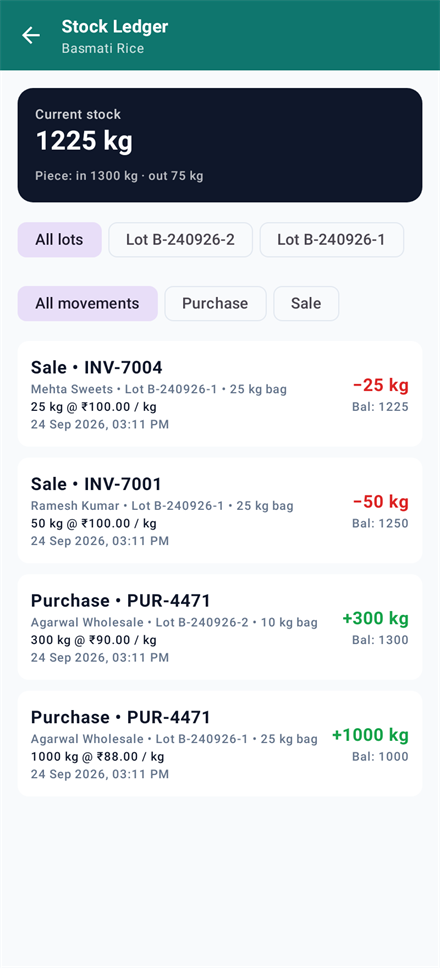
Ek item ka poora hisaab: kab aaya, kab gaya, kis rate par, aur har baar kitna bacha.One item's whole story: when it came, when it went, at what rate, and how much was left each time.

  1. Stock → item ka ⋮ → Stock Ledger.Stock → the item's ⋮ → Stock Ledger.
  2. Upar ke chips se chhaano: naap, lot, ya entry ka type.Use the chips at the top to narrow it: measurement, lot, or kind of entry.
  3. Kisi line par tap — us bill ki poori detail khulti hai.Tap a line — that bill opens in full.
Dhyaan raheWatch out
  • Stock ka number galat lage to pehle yahan dekho — har badlav ki line yahan hai.If a stock figure looks wrong, look here first — every change has a line.
Stock Ledger in Hisabnex

Grahak aur supplier ka khataCustomers, suppliers and the khata

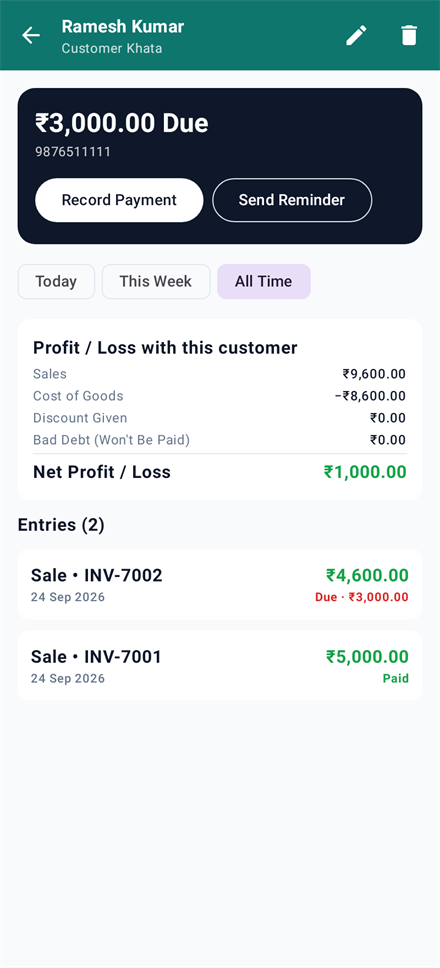
Kisse paisa lena hai, kise dena hai — do list me. Har bill par Paid, Part paid ya Due likha hota hai.Who owes you and whom you owe — two lists. Every bill is marked Paid, Part paid or Due.

  1. Parties → Customers (Udhar) ya Suppliers (Payable). Naya: + → naam, phone, Opening Balance (₹).Parties → Customers (Udhar) or Suppliers (Payable). New one: + → name, phone, Opening Balance (₹).
  2. Paisa aaya ya diya: Record Payment. Kisi bill ke against dena ho to us bill par tap karke payment karo — wahi bill Paid hota hai.Money in or out: Record Payment. To pay against one bill, tap that bill and pay there — that bill turns Paid.
  3. Yaad dilana: Send Reminder → Send via WhatsApp — baaki raqam khud likh kar jaati hai.A reminder: Send Reminder → Send via WhatsApp — the amount due is written for you.
  4. Hisaab barabar karna: Settle Balance — chhoot di (Discount Given) ya paisa doobega (Bad Debt (Won't Be Paid)).Squaring up: Settle Balance — a discount (Discount Given) or money you will not get (Bad Debt (Won't Be Paid)).
Save karne par kya hota haiWhat happens when you save

Grahak ke khate me us grahak se kitna munafa hua ye bhi dikhta hai.A customer's khata also shows how much profit you made from them.

Dhyaan raheWatch out
  • Party ko delete tabhi hota hai jab hisaab 0 ho — pehle Clear the balance first.A party can only be deleted when the balance is 0 — Clear the balance first.
Customers, suppliers and the khata in Hisabnex

History (din bhar ka hisaab)History (the day book)

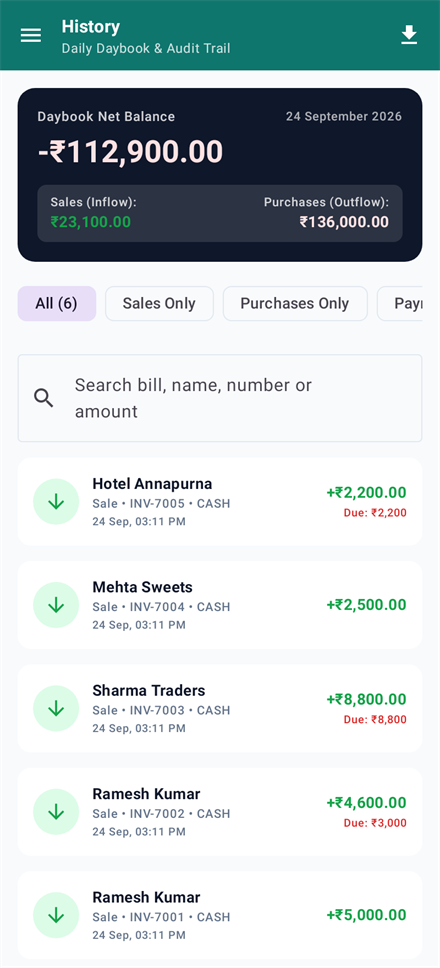
Har entry, taareekh ke kram me: sale, purchase, payment, return. Galat entry yahin se hatti hai.Every entry in date order: sales, purchases, payments, returns. Wrong entries are removed from here.

  1. History → upar Sales Only, Purchases Only, Payments & Adjustments se chhaano.History → narrow it with Sales Only, Purchases Only, Payments & Adjustments.
  2. Search me naam, bill number, mobile ya raqam likho.Search by name, bill number, mobile or amount.
  3. Galat entry par tap → Delete → app batata hai kya-kya wapas hoga → PIN (agar laga hai) → ho gaya.Tap the wrong entry → Delete → the app lists what will be undone → PIN (if set) → done.
Save karne par kya hota haiWhat happens when you save

Delete karte hi stock aur khata dono waise ho jaate hain jaise wo entry kabhi thi hi nahi.Once deleted, stock and khata go back exactly as if the entry had never been made.

Dhyaan raheWatch out
  • Entry "edit" nahi hoti — galat ho to delete karke sahi dobara banao.Entries are not edited — delete the wrong one and make it again.
History (the day book) in Hisabnex

Munafa reportProfit reports

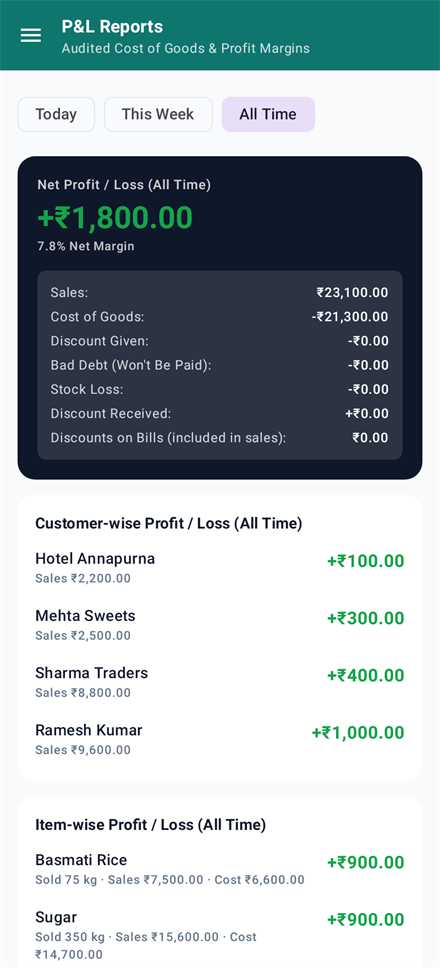
Asli munafa: bikri minus kharid ka daam, chhoot aur nuksaan ke baad.Real profit: sales less what the goods cost, after discounts and losses.

  1. P&L Reports → Today / This Week / All Time.P&L Reports → Today / This Week / All Time.
  2. Neeche grahak-wise aur item-wise munafa — nuksaan wala upar dikhta hai.Below it, profit by customer and by item — whatever loses money is on top.
  3. Export P&L to Excel (CSV) — CA ko bhejne ke liye.Export P&L to Excel (CSV) — for your accountant.
Dhyaan raheWatch out
  • Munafa sahi tabhi aata hai jab maal Receive Stock se kharid rate ke saath aaya ho.Profit is only right when goods came in through Receive Stock with their buying rate.
Profit reports in Hisabnex

Backup aur RestoreBackup and restore

Saara hisaab sirf aapke phone me hai. Backup file hi uski chaabi hai — phone kho gaya ya badla to wahi kaam aayegi.Your ledger lives only on your phone. The backup file is its key — if the phone is lost or changed, that file is what brings it back.

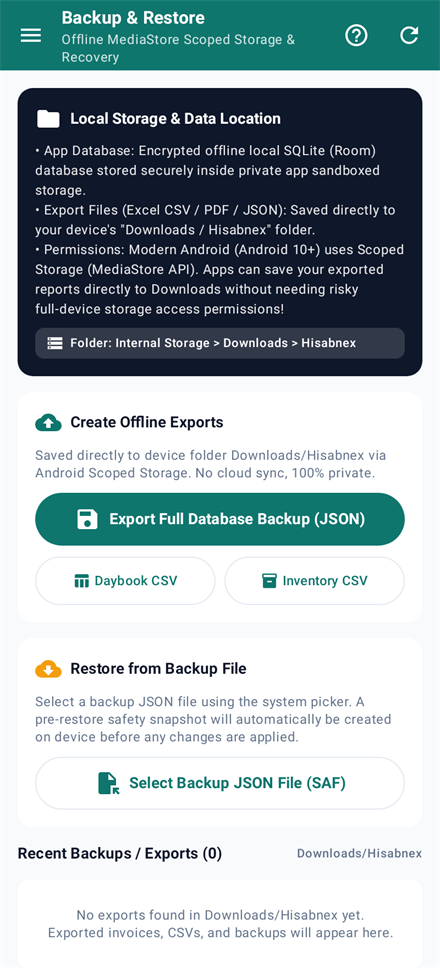
  1. Backup & Restore → Export Full Database Backup (JSON) — file phone ke Downloads me banti hai.Backup & Restore → Export Full Database Backup (JSON) — the file lands in the phone's Downloads.
  2. Wo file Google Drive par ya WhatsApp par khud ko bhej do — phone ke bahar ek copy zaroori hai.Send that file to Google Drive or to yourself on WhatsApp — keep one copy off the phone.
  3. Naye phone par: app daalo → Backup & Restore → Select Backup JSON File (SAF) → Replace Entire Database.On a new phone: install the app → Backup & Restore → Select Backup JSON File (SAF) → Replace Entire Database.
  4. Merge with Existing Data tab jab do jagah ka data jodna ho — barcode milte item update hote hain.Merge with Existing Data when joining two sets of books — items with matching barcodes are updated.
  5. Excel chahiye: Inventory CSV ya Daybook CSV.Need Excel? Inventory CSV or Daybook CSV.
Dhyaan raheWatch out
  • App uninstall karoge to phone ka saara hisaab mit jayega. Update ke liye uninstall kabhi mat karo.Uninstalling the app deletes the ledger on that phone. Never uninstall to update.
  • Hafte me kam se kam ek baar backup lo.Take a backup at least once a week.
Backup and restore in Hisabnex

SettingsSettings

Dukaan ki detail, PIN, bhasha, bill ka format aur app update.Shop details, PIN, language, the bill format and app updates.

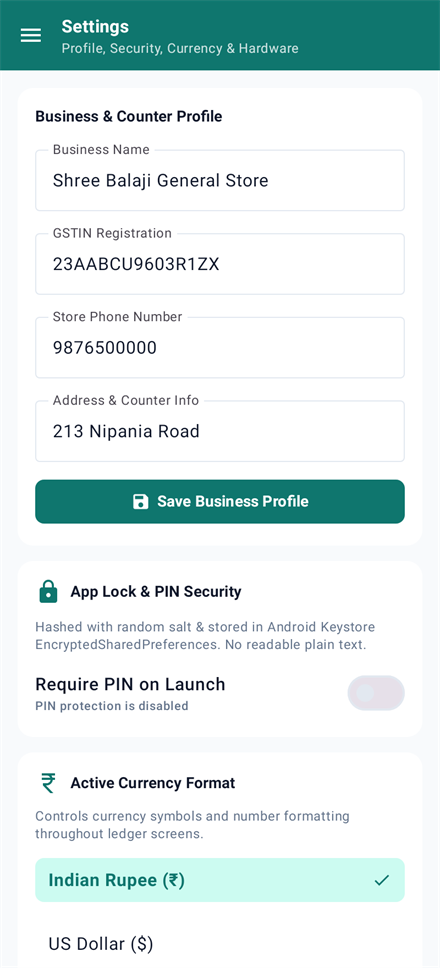
  1. Business & Counter Profile — naam, GSTIN, phone, pata (bill par chhapta hai).Business & Counter Profile — name, GSTIN, phone, address (they print on bills).
  2. App Lock & PIN Security — Require PIN on Launch, Fingerprint. Galat bill delete karte waqt bhi PIN maanga jata hai.App Lock & PIN Security — Require PIN on Launch, Fingerprint. Deleting a bill asks for the PIN too.
  3. Printer & Receipt Format — A4 bill ya thermal parchi (58/80 mm).Printer & Receipt Format — an A4 bill or a thermal receipt (58/80 mm).
  4. What this shop deals in — category aur unit tick karna, Remove example data.What this shop deals in — tick categories and units, Remove example data.
  5. App update: Check for Update → Download & Install. Saara data waisa hi rehta hai.App update: Check for Update → Download & Install. Everything saved stays.
Dhyaan raheWatch out
  • PIN bhool gaye to app kholna mushkil hai — PIN kahin likh kar rakho.Forgetting the PIN locks you out — keep it written somewhere safe.
Settings in Hisabnex

Sawaal-jawaabQuestions

Kya internet chahiye?Do I need the internet?

Nahi. Bill, stock, khata sab bina internet chalta hai. Internet sirf update check, licence aur ye guide kholne me lagta hai.No. Bills, stock and the khata all work offline. The internet is used only to check for updates, confirm the licence, and open this guide.

Phone badalna hai, data kaise le jaun?Changing phones — how do I move my data?

Purane phone me backup file banao, naye phone par app daal kar wahi file Replace Entire Database se restore karo.Make a backup file on the old phone, install the app on the new one and restore that file with Replace Entire Database.

Ek item do baar ban gaya, ab?I made the same item twice. Now what?

Jis item me koi bill nahi hai use Delete karo. Dono me bill hain to aage se ek hi use karo.Delete the one that has no bills. If both have bills, keep using just one from now on.

Maal aaya par galti se Edit Lot se qty badha di.Goods arrived but I raised the quantity through Edit Lot.

Us lot me Correct the quantity se ginti wapas karo (wajah: "galti"), phir supplier ka bill Receive Stock se chadhao.Put the count back with Correct the quantity (reason: "mistake"), then enter the supplier's bill through Receive Stock.

Kya do phone par ek saath chala sakte hain?Can two phones share one ledger?

Nahi, har phone ka apna hisaab hota hai. Ek phone ko dukaan ka phone rakho.No, each phone keeps its own books. Keep one phone as the shop's phone.

MRP aur selling rate me kya fark hai?What is the difference between MRP and the selling rate?

MRP maal par chhapa daam hai. Selling wo daam hai jis par aap bechte ho (thok me aksar kam). Munafa hamesha kharid rate se ginta hai.MRP is the price printed on the goods. Selling is what you actually charge (often less in bulk). Profit is always worked out from the buying rate.

Phir bhi atke ho?Still stuck?

Screen ki photo ke saath likho — hum batayenge. App ka data kabhi nahi maangte.Send us a screenshot with your question — we will help. We never ask for the data in your app.

Humse baat karoTalk to us